
MDR PhilHealth Download, Print & Update Guide
Find out how to view and download your PhilHealth Member Data Record, print a copy, register for the Member Portal, and request corrections to your membership information. Follow detailed instructions with screenshots and links to official services.
Independent information guide. Member transactions are completed through official PhilHealth services.
How to View & Print Your PhilHealth MDR
Follow the steps to access the Member Portal, review your membership information, and download or print a copy of your record.
Member Portal Registration & Login
Learn how to create a portal account with your existing PIN and access your membership information.
Update Your PhilHealth Member Record
Find guidance on correcting personal information, updating contact details, and requesting dependent changes.
What Is MDR PhilHealth?
The Member Data Record (MDR) is a PhilHealth-issued record of your membership information.
It allows you to review the details associated with your PhilHealth Identification Number (PIN), including personal information and declared dependents.
The Member Portal provides access to your membership profile and lets you download or print your MDR. Review the information before using a copy for a transaction.
Information to review
Member details- Personal information
- Check the name, date of birth and other identifying details recorded in your membership profile.
- Membership and employer details
- Review the membership information and employer details shown, where applicable.
- Declared dependents
- Check the dependent names and information recorded under your membership.
Fields shown may vary with your membership and the current record format.
MDR and PMRF
serve different purposes.
Your Member Data Record displays membership information held by PhilHealth. You obtain a copy to review or present that record when needed.
The PhilHealth Member Registration Form is completed for registration or amendments. Downloading a blank PMRF does not generate your personal MDR.
How to Download & Print MDR PhilHealth
Access your Member Data Record through the official PhilHealth Member Portal. Follow the steps below to sign in, review your information, and save or print a copy.
Open the PhilHealth Member Portal
Visit the official PhilHealth website, open Online Services, and select Member Portal. You can also use the official portal button at the end of this guide.
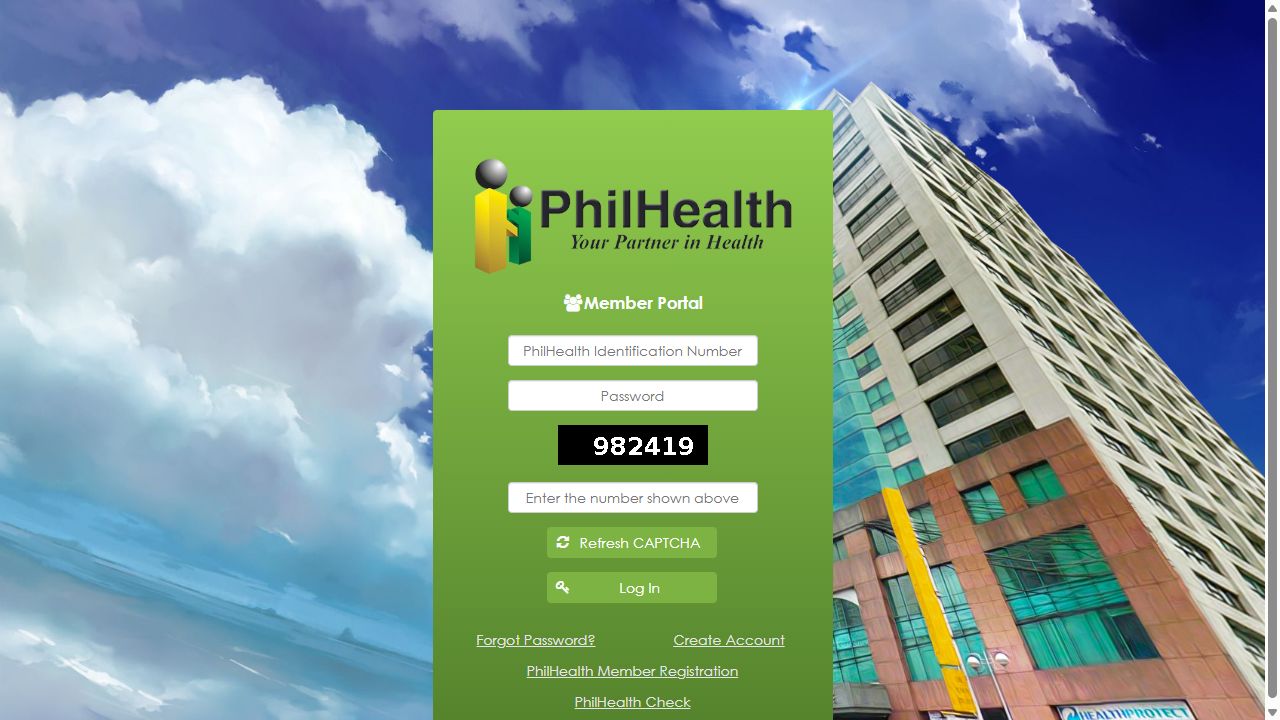
Enter your PIN and password
- Enter your PhilHealth Identification Number.
- Enter the password for your Member Portal account.
- Type the CAPTCHA shown on the page. Use Refresh CAPTCHA if you cannot read it.
- Select Log In to access your account.
Open the MDR view or print option
Find the option for viewing or printing your MDR within your member account. The menu label or position may change when the portal is updated.
- Check that the PIN and member name belong to the correct person.
- Review the personal and membership information shown.
- Check the recorded dependent details, where applicable.
If a detail is incorrect, follow the member-record update guide . Editing a downloaded file does not correct the official membership record.
Download the MDR or use Print
Use the document controls provided by the portal. If a print window opens, select your printer or choose Save as PDF when your browser offers it.
- Check the print preview for missing or clipped information.
- Open the saved file to confirm that it is readable and complete.
- Log out of the Member Portal when you finish.
Using a phone? Look for Print, Share, or Save in your browser or document viewer. Available options depend on your device.
Download & printing help
Check these points if the record does not open or you cannot save a copy on your device.
The MDR document does not open. What should I check?
Can I save the MDR now and print it later?
What if I have forgotten my password?
PhilHealth Member Portal
Registration & Login
To access your MDR online, you need a Member Portal account linked to your PhilHealth Identification Number (PIN). Creating portal access and applying for PhilHealth membership are different processes.
For members with an existing PIN
Create Your Member Portal Account
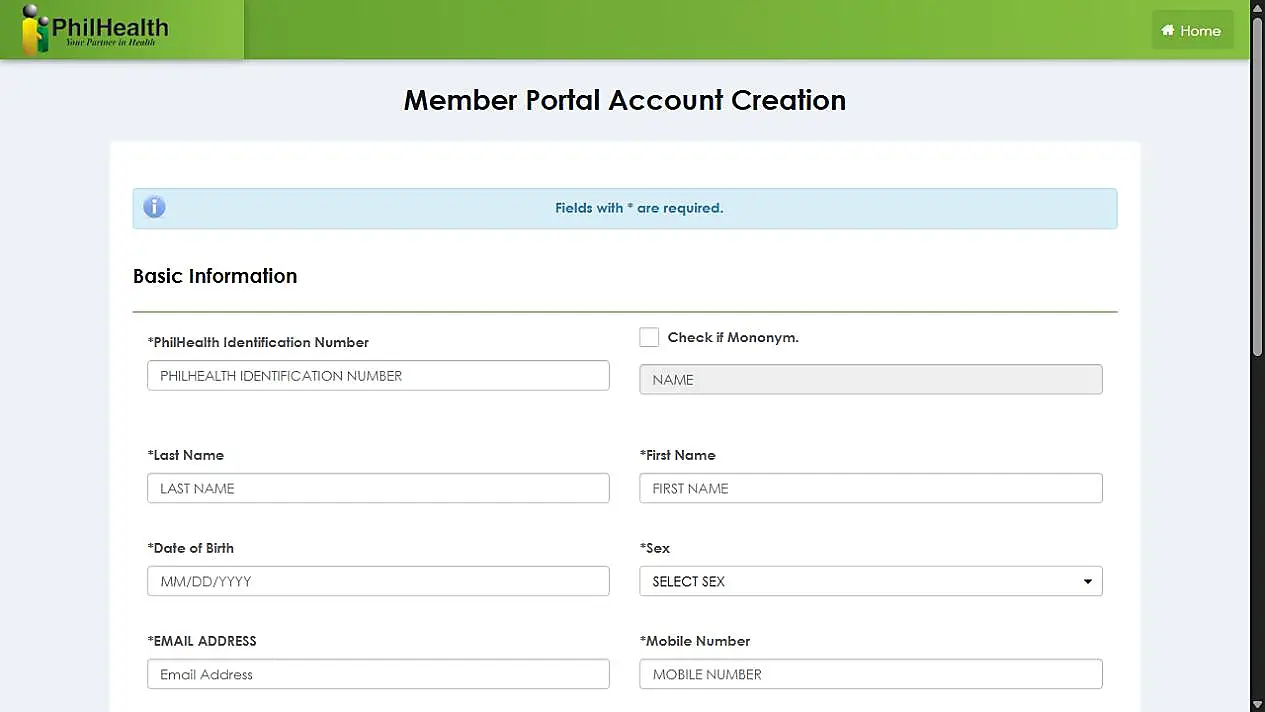
Open the official Create Account page and use the information recorded under your existing membership.
- Enter your PIN and the personal details requested on the form. Check that they match your PhilHealth record.
- Provide your email address and mobile number. Use an email account you can access.
- Create and confirm a password that meets the requirements displayed on the official form.
- Enter the displayed CAPTCHA, select Create Account, and follow the on-screen or email activation instructions.
Apply for Your First PhilHealth PIN
If you have never been assigned a PIN, read the official individual NHIP registration instructions. This application is separate from setting up portal access with an existing member number.
Prepare the required documents
The official instructions require a completed PMRF and supporting identity documents for application validation. Check the current requirements before submitting.
Complete the official application
Enter a valid email address and the displayed CAPTCHA. Select Proceed, then follow the application and document-upload instructions.
Check the application updates
Monitor the email address you provided for notifications. Follow any request for additional information and retain your application confirmation.
Account activated? Access your MDR.
Return to the official Member Portal. Enter your PIN, password and the displayed CAPTCHA, then select Log In. Continue with the MDR download and printing instructions .
Already have an account but cannot sign in?
Use Forgot Password? on the official Member Portal login page . Follow the recovery instructions instead of submitting a new membership application.
How to Update or Correct Your PhilHealth MDR
An MDR correction requires an amendment to your official member record. The screenshots below explain the PMRF route when a form-based request is appropriate for your change.
Enter your PIN and select the amendment purpose
Open the official PMRF. On page 1, find the PIN boxes and the PURPOSE section near the top.
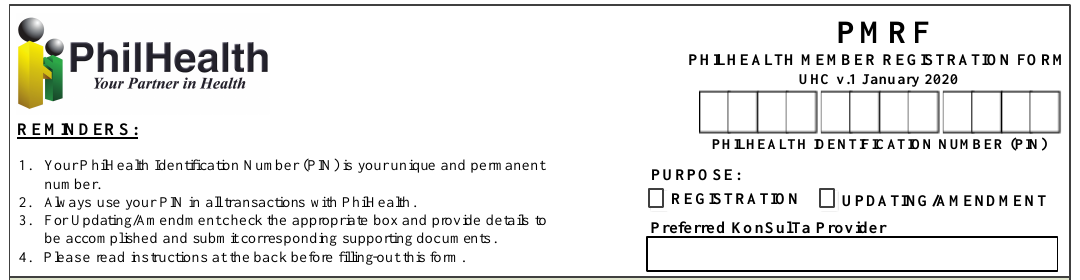
- Enter your existing PhilHealth Identification Number in the PIN boxes.
- Under PURPOSE, select UPDATING/AMENDMENT for a correction to an existing record.
- Complete the required identifying details. Read the instructions on page 2 before filling the form.
Identify the field to correct and enter FROM / TO details
On page 2, find Part V: UPDATING/AMENDMENT. Use the row that corresponds to the requested change.
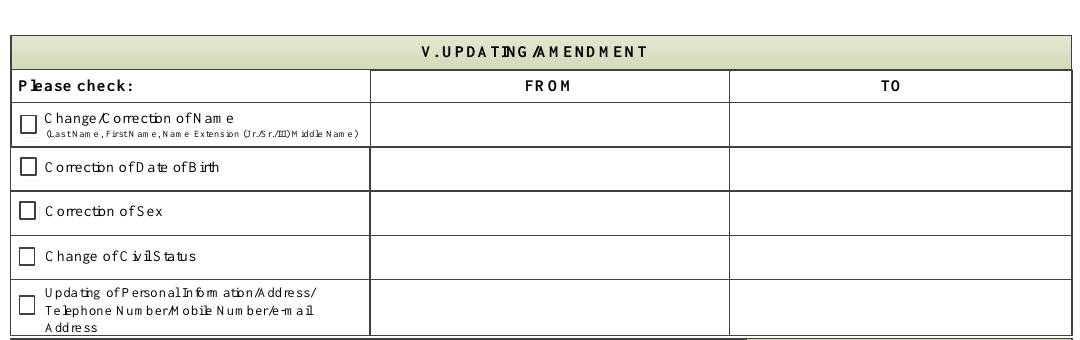
- Check the relevant change or correction box.
- In FROM, enter the information currently recorded that needs correction.
- In TO, enter the correct information requested, consistent with your supporting documents.
TO: SANTOS, MARIA
Use your own details and the appropriate official evidence.
Complete dependent information if your request involves a dependent
For a dependent-related request, locate Part III: DECLARATION OF DEPENDENTS on page 1.
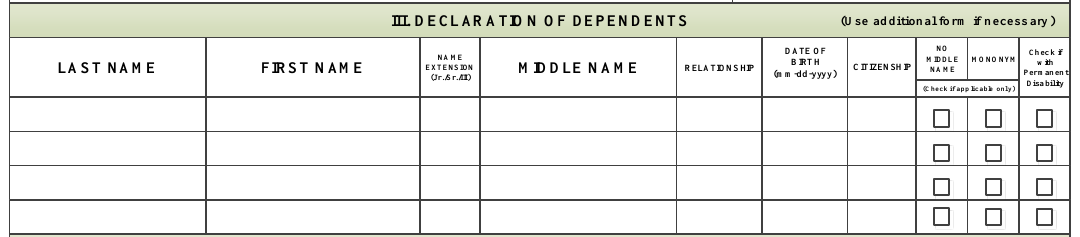
- Enter the relevant dependent details in the labelled columns.
- Confirm the relationship and supporting documents required for your request with PhilHealth.
- If your request concerns an existing dependent entry, explain the specific correction to the receiving office. PhilHealth determines eligibility and the required evidence.
Review the declaration, sign and date the form
On page 2, review the declaration before completing the member signature and date fields.
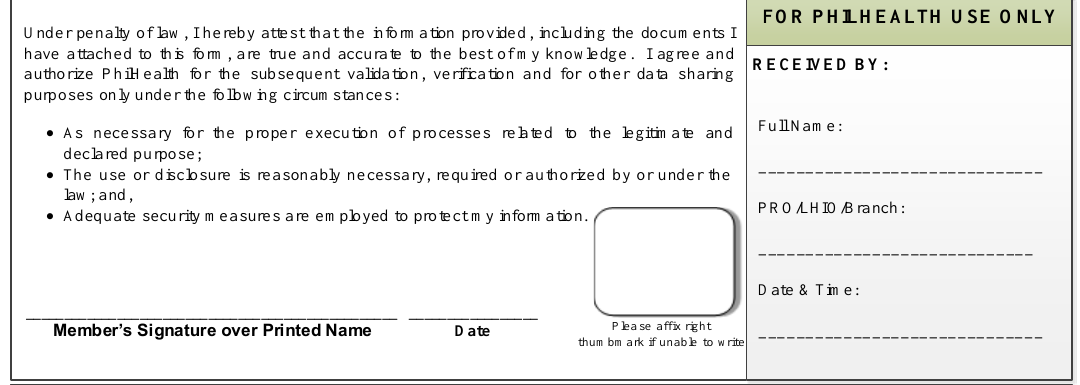
- Check the completed details and read the declaration.
- Sign over your printed name and enter the date as instructed. The form provides thumbmark instructions for members unable to write.
- Leave the FOR PHILHEALTH USE ONLY area for authorized staff.
Submit through the confirmed official channel
Ask the receiving office for the current document checklist and submission arrangements. Keep a copy of what you submit and any transaction reference. Do not send identity documents to an unverified recipient.
Check the amended record before printing
After PhilHealth confirms the amendment, retrieve a fresh MDR. Compare the affected fields with the requested correction, then follow the MDR download and printing instructions .
Images are cropped views of the blank official PMRF. Highlight outlines and instructions are guide annotations, not part of the official form. Confirm that the form currently provided by PhilHealth matches the version shown.
How to Get Your MDR Without Online Access
If you cannot access the Member Portal, contact a PhilHealth office about requesting a copy of your Member Data Record. Start by finding an office and confirming the service and documents required.
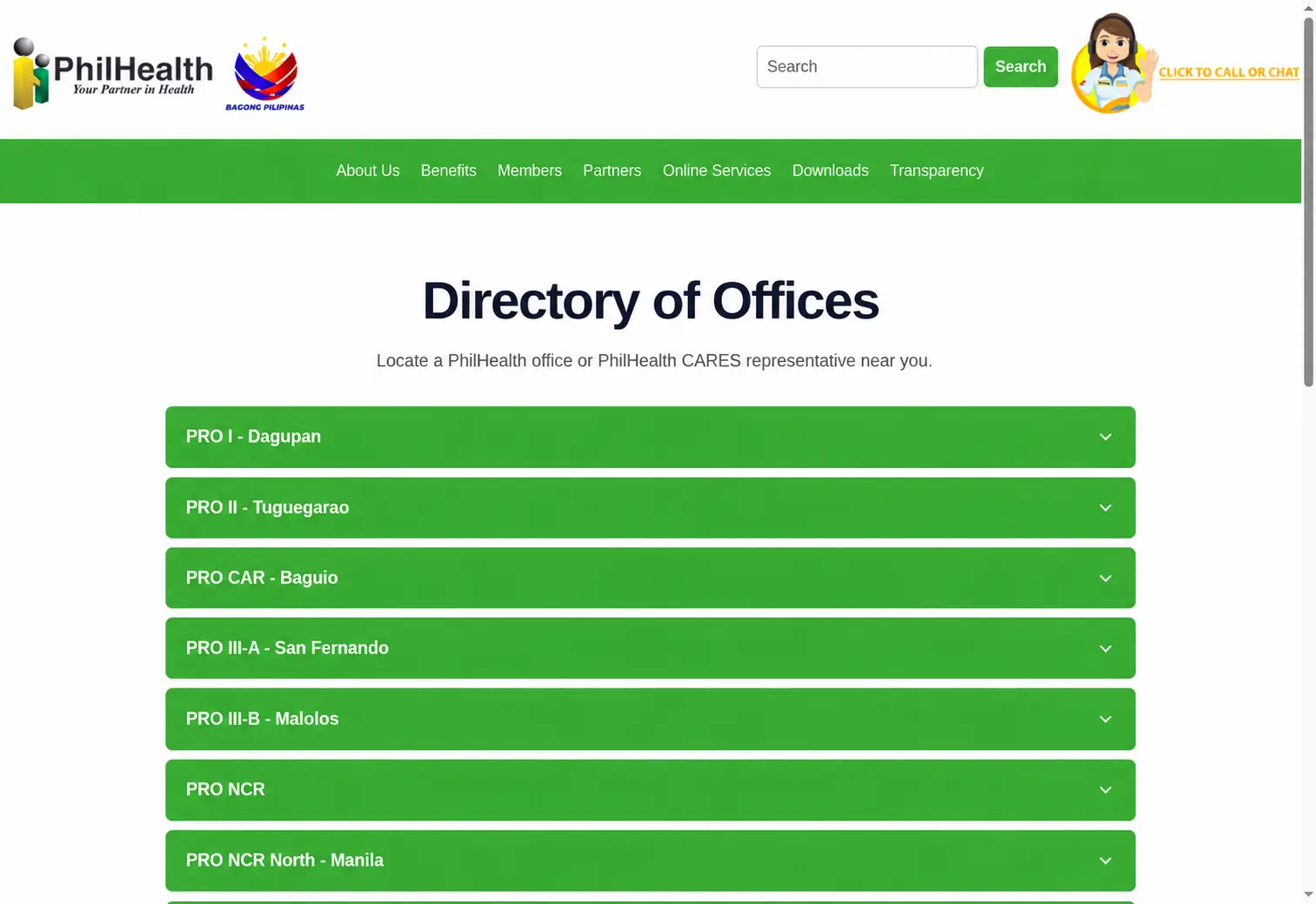
Find the office before you travel
Use the official Directory of Offices.Open your regional office listing
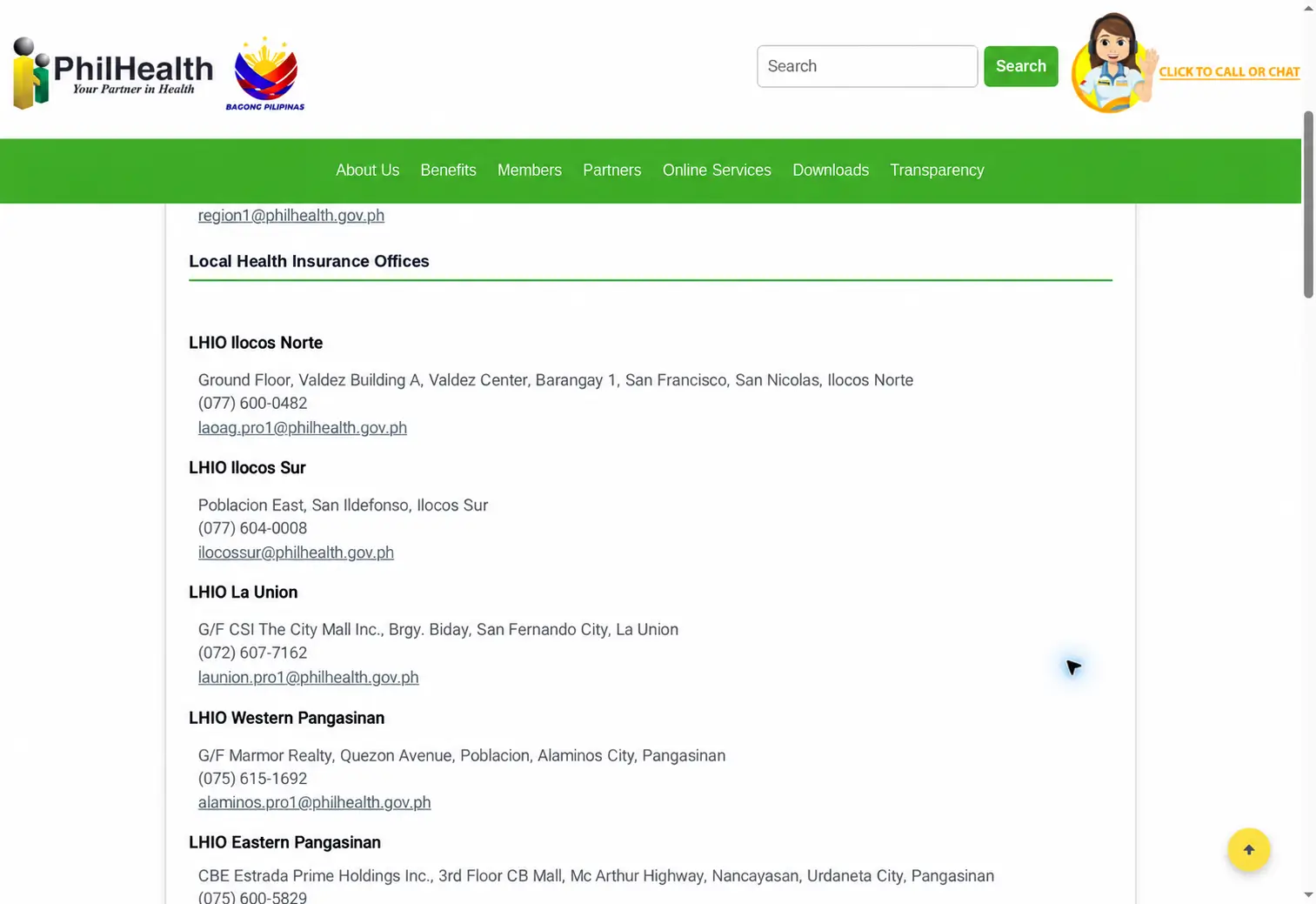
Check the local office details
Requesting your MDR at the office
-
Explain that you need an MDR copy
Tell the assistance desk that you are requesting a copy of your existing Member Data Record. Follow the office’s queue and request-form instructions.
-
Provide the required verification
Present the identification and documents requested for your transaction. Give your existing PIN if known. Let authorized staff verify the record.
-
Receive and review your MDR
Check the PIN, member name and relevant information before leaving. If a detail is incorrect, ask how to request an amendment and keep any transaction reference.
If your situation needs additional assistance
Confirm these arrangements with the receiving office before sending documents or asking someone to act for you.
Can a representative request my MDR?
What if I do not know my PhilHealth PIN?
Can I request assistance by email?
What if the printed MDR contains an error?
Screenshots show the official PhilHealth Directory of Offices and are provided for navigation guidance. Office locations, contacts and page layout may change. Check the live directory before travelling.
MDR Login, Download & Printing Problems
Select the issue you are experiencing. Follow the checks in order, then use the relevant guide or official service if further action is needed.
Account access
01 My PIN or password is not accepted
- Check the PIN against an existing PhilHealth document. Look for a typing error or an extra space.
- Check password capitalization and whether the keyboard has Caps Lock enabled.
- If you have forgotten the password, select Forgot Password? on the official login page and follow the recovery instructions.
- If you never created online access, review the account-registration process using your existing PIN.
02 The CAPTCHA keeps being rejected
- Enter the CAPTCHA currently shown on your own login page.
- If it is unclear, select Refresh CAPTCHA. Enter the replacement value.
- Check the characters before submitting. Do not copy the CAPTCHA shown in a tutorial screenshot.
03 I cannot find the account activation email
- Check the inbox, spam and junk folders of the email address used during account creation.
- Review any instruction or account status displayed by the official registration service.
- If a resend option is available, follow its instructions.
- If the email address is incorrect or no longer accessible, ask PhilHealth how to verify and restore account access.
Download, printing & record details
04 The MDR document does not open or download
- Check whether the browser opened another tab, a document viewer, or a download.
- Look for a browser notice about a blocked document window. Allow the expected window for the official site if needed.
- Check your internet connection and available device storage.
- If the problem continues, try the operation in a current browser.
05 My printed copy is blank, clipped or difficult to read
- Open the saved document and check that the information appears correctly on screen.
- Check the print preview before printing. Review page selection, orientation and scaling.
- Use a fit-to-page option if it resolves clipping without making the text too small.
- If printing from a phone is unsuccessful, save the document and try printing from another supported device.
06 My name, personal details or dependents are incorrect
- Identify the exact field that differs from the correct information.
- Check the official amendment process and supporting documents for your request.
- Keep the submission reference and follow any verification instructions from PhilHealth.
- After confirmation, retrieve a fresh MDR and check the corrected information.
Portal availability
07 The Member Portal is unavailable
- Check that other websites load and confirm that you are using the official portal address.
- Read any maintenance or service notice displayed by the portal.
- Try again later if the service remains unavailable.
- If you need an MDR urgently, contact an official office about available request arrangements.
MDR PhilHealth FAQs
Answers to common questions about your Member Data Record, related documents, membership number and the copy you may need for a transaction.
Is the MDR the same as the PMRF?
No. The MDR displays information held in your membership record. The PMRF is the form used to provide registration or amendment information to PhilHealth.
A blank PMRF does not contain your personal member record.
Do I need a new PIN to obtain another MDR?
No. PhilHealth identifies the PIN as your unique and permanent number. Use your existing PIN when requesting or retrieving another MDR copy.
If you cannot find the number, ask PhilHealth to verify or retrieve it.
Can I fill in a blank template to create my MDR?
A self-completed template does not retrieve your official member record. Obtain your MDR through the official Member Portal or the applicable PhilHealth office process.
Follow the online MDR instructions or the office request guide .
Does my MDR prove that all contributions are paid?
Do not treat an MDR copy as a complete payment history. Check posted contribution periods in the official member service and compare them with your receipts or payroll records.
Ask PhilHealth or your employer to investigate any discrepancy.
How recent should my MDR copy be?
Use a copy that reflects your current membership information, especially after an amendment. Ask the receiving office whether it requires a recently issued copy for the transaction.
A permanent PIN does not mean an old printed MDR includes later record changes.
Can I keep a digital copy on my phone?
If the portal or your device provides a download or Save as PDF option, you can keep the resulting file. Open it to check that it is complete and readable.
Confirm whether the receiving office accepts a digital copy or needs another document format.
Is a printed MDR always required for a hospital claim?
Do not assume it is required for every claim. For example, PhilHealth’s 2026 maternal and gynecologic care FAQ states that printed MDR submission is not required for claims under that guidance.
Ask the facility’s PhilHealth desk about the current requirements for your specific transaction.
Can this website issue or change my MDR?
No. This is an independent information guide. It does not issue official MDRs, access member accounts, approve amendments or accept PhilHealth premium payments.
Personal transactions must use the appropriate official PhilHealth service.
References: Official online services , official PMRF , and 2026 maternal and gynecologic care FAQ .
Official PhilHealth Services & References
Use these links to access your member record, obtain an official form, or contact a PhilHealth office. Check the purpose of each resource before opening the service.
Links open official PhilHealth services in a new tab.
PhilHealth Member Portal
Sign in to access your membership record and use the available MDR view or print service. Account-creation and password recovery options are on the login page.
PhilHealth Member Registration Form
Open the official PMRF for registration or member-record amendments. Read the instructions on both pages and confirm the supporting documents needed for your request.
Directory of PhilHealth Offices
Find regional and local office locations and contact details. Confirm service availability, documentary requirements and visit arrangements with the receiving office before travelling.
PhilHealth Forms & Downloads
Check the forms currently listed by PhilHealth, including the PMRF. Use the official downloads page to confirm the form available for your transaction.
References Used in This Guide
The following official pages and publications support the service information explained throughout this MDR PhilHealth guide.
-
PhilHealth Online Services
Lists the Member Portal and its MDR view or print service, alongside other official online facilities.
-
Official PMRF and Form Instructions
Provides registration and amendment fields, PIN reminders, declaration sections and instructions for completing the form.
-
PhilHealth Advisory 2026-0016
Describes published Member Portal capabilities, including membership record updates and amendments.
-
Regional Office Citizen’s Charter — 2024 Edition
Includes published procedures for requesting an MDR copy. Confirm current requirements and arrangements directly with the receiving office.
-
2026 Maternal and Gynecologic Care FAQ
Explains printed MDR guidance for claims covered by that publication. Requirements for a particular transaction should be confirmed with the relevant facility or PhilHealth office.
About the Information on This Page
This guide explains published PhilHealth processes and includes practical instructions for navigating forms, saving documents and checking your member record.
Portal screens, available functions and documentary requirements can change. Follow the live official instructions and confirm personal-record requirements directly with PhilHealth.
Screenshots are reference views of official pages or forms. Highlight outlines and explanatory notes belong to this guide and are separate from the official service.