
Account access for your PhilHealth MDR
PhilHealth Member Portal
Registration & Login Guide
Learn how to create a portal account using your existing PhilHealth PIN, complete email activation and sign in to access your MDR. Start with the option that matches your membership and account status.
Do you need an account, a login or first-time membership?
I need a portal account
Use account creation if you already have a PhilHealth PIN but have not registered for Member Portal access. Prepare your personal details, email address and mobile number.
Official account creationI am ready to sign in
Return to the login page if your portal account is already activated. Have your PIN and password ready to access your member information and MDR.
Open official loginI do not have a PIN yet
Portal account creation requires a PIN. If you have not been assigned one, start with PhilHealth membership registration before creating your portal account.
First-time registration guidanceAlready a PhilHealth member but unable to find your PIN? Confirm your existing membership details with PhilHealth before starting a first-time registration application.
Independent information guide. Account creation and sign-in take place on PhilHealth’s official website.
Account creation · Existing PIN holders
Create your Member Portal account
Keep your existing membership details available for checking. Complete the official form in a separate tab, using the reference image and field explanations below.
Open the official account creation form
This creates portal access using an existing PIN. If you need first-time membership, return to the starting-point options.
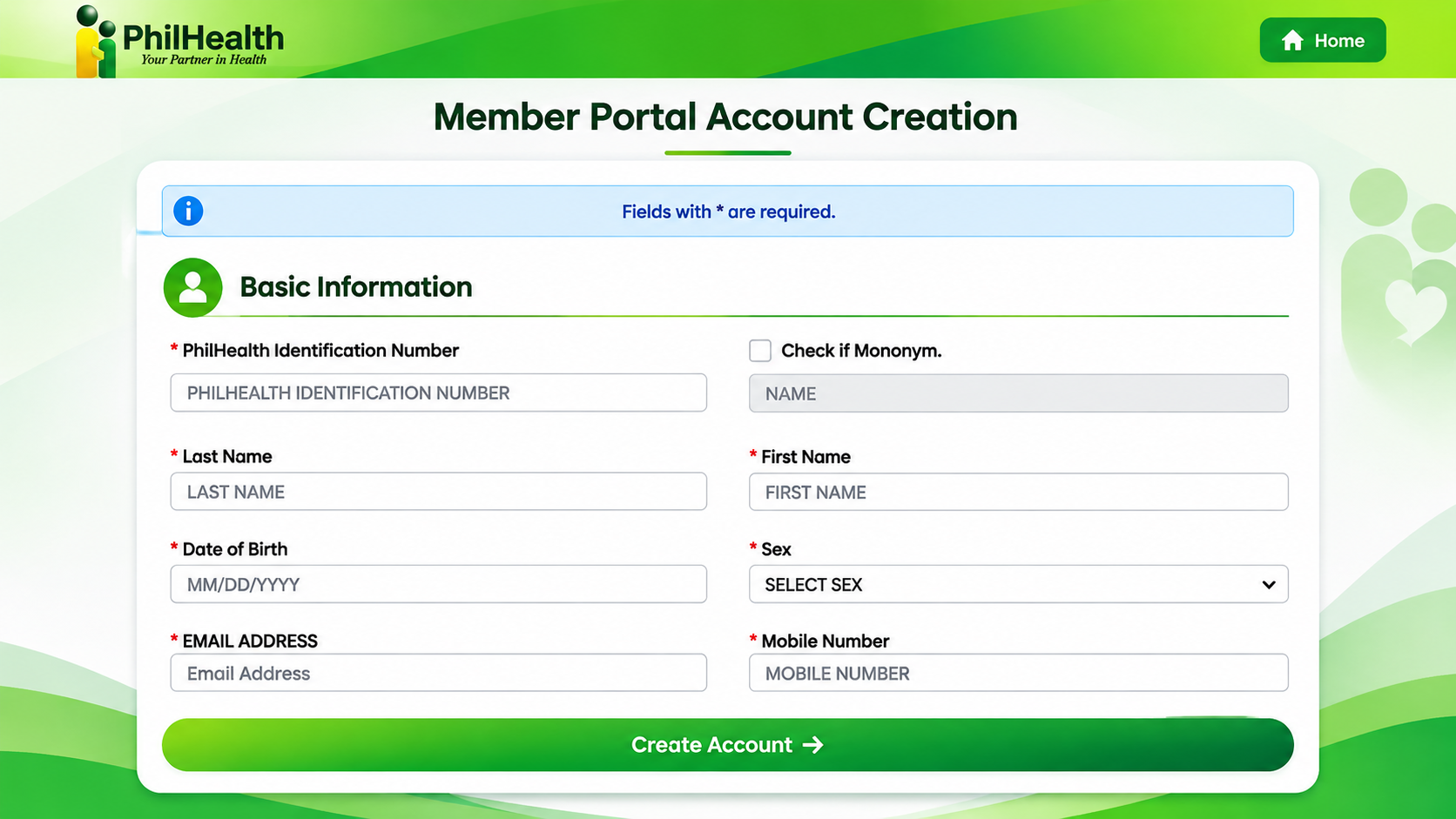
Enter your basic information
| PhilHealth PIN | Enter your existing PhilHealth Identification Number. |
|---|---|
| Last and first name | Enter your names as recorded in your membership details. |
| Single name | If applicable, follow the form’s Mononym option. |
| Date of birth | Use MM/DD/YYYY. For example, 04/09/1990 means April 9, 1990. |
| Sex | Select the entry matching your membership record. |
| Email address | Use an email account you can open for activation. |
| Mobile number | Enter your current number, following the live form’s format. |
Before continuing, compare your entries with your existing record and check for typing errors.
Set your password
- 8–32 characters.
- At least one number.
- Uppercase and lowercase letters.
- At least one permitted special character.
Enter the same password in Preferred Password and Confirm Password. Follow any updated rules displayed on the live form.
Complete and submit
- Enter the CAPTCHA shown on your live page. Use Refresh CAPTCHA if needed.
- Review your entries and select Create Account.
- Read the response and correct any highlighted errors.
Keep the portal’s confirmation message available while you check the next account-activation instructions.
Next: activate your account by email
PhilHealth’s published instructions include activation through an email confirmation link. After a successful submission, check the email address you supplied and follow the portal’s instructions before signing in.
After account creation
Activate your account and sign in for the first time
After the portal accepts your account registration, complete the email confirmation. Then return to the official login page to access your member information.
-
Open the email account you registered
Check the inbox for the address entered during account creation. Look for the PhilHealth account confirmation message and read its instructions.
If you use several email addresses, check the one you supplied on the registration form.
-
Follow the activation link
Open the confirmation link provided in the email. Follow the instructions on the page that opens and read the resulting activation message.
If the page reports an error, note its exact wording. Check whether the message says activation has already been completed before repeating any registration steps.
-
Return to the official Member Portal
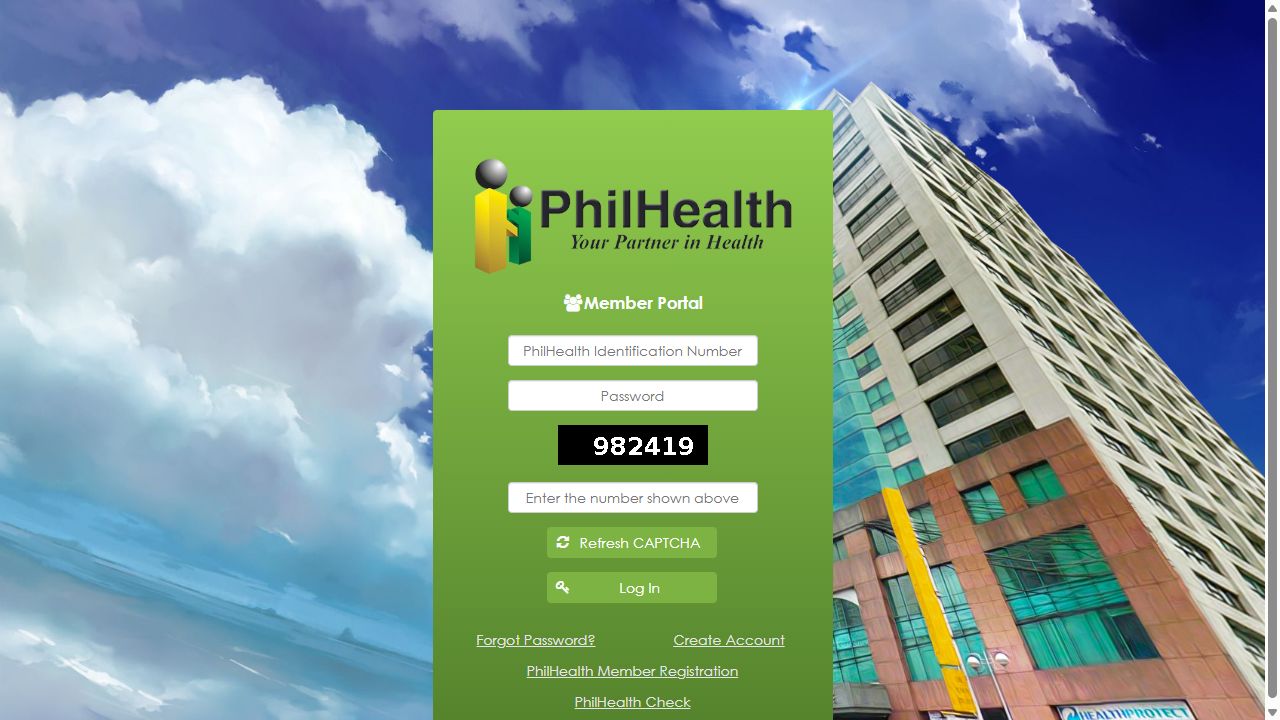
Once activation is confirmed, open the login page and enter the account details you just registered.
- Enter your PhilHealth Identification Number in the PIN field.
- Enter the password you chose during account creation.
- Complete the CAPTCHA displayed on the live page.
- Select Log In and read any response displayed.
Cannot find the activation email?
- Search your mailbox for PhilHealth and check Spam or Junk folders.
- Check the portal’s submission response. If the form showed validation errors, correct those before expecting an activation message.
- Check the email address you supplied against any confirmation details available to you.
- If the portal offers an activation-help or resend option, follow the instructions actually displayed. If the problem continues, contact PhilHealth through its official office directory.
Email delivery time can vary. The checks above are practical troubleshooting suggestions; they do not guarantee a delivery time or confirm your account status.
Successfully signed in? Continue to your MDR
Your Member Information Page should open after a successful login. Follow the dedicated guide to locate your MDR, review the details and save or print a copy.
Account creation support
When your registration cannot be completed
Use the response displayed by the portal to choose your next step. A rejected field, an existing account and an interrupted submission need different checks.
A membership detail is rejected
Read which entry the portal identifies. Compare that entry with your existing membership record and correct any typing error. If the information held by PhilHealth is itself incorrect, ask about correcting that record.
The portal indicates an account already exists
Treat this as an existing-access issue. Use the account recovery options provided by the official portal, or ask PhilHealth to clarify the account status if you do not recognise the registration.
You submitted an incorrect email address
If the form has not been accepted, correct the address before submitting. If registration was accepted, follow any correction option actually displayed by the portal.
Submission ends without a clear confirmation
Check the page for validation messages before assuming that an account was created. If a connection error or interrupted page load occurs, note what appeared and check for any registration confirmation you received.
These are troubleshooting suggestions, not quoted portal error messages or a diagnosis of your account. Contact details are published in PhilHealth Advisory 2026-0016. Follow the instructions given for your specific request.
Registration questions and references
Documents, account access and official resources
Do existing PIN holders need to upload an ID or PMRF on the account creation form?
The public account creation form currently displays personal, contact and login fields, with no document-upload field shown for this existing-PIN process. Follow any additional verification instructions the official service gives for your circumstances.
Does successful registration confirm that my contributions are up to date?
Registration establishes portal access. To check payments, review the separate contribution records available in your account. Account creation alone does not verify that every payment has been posted.
Personal information corrections
Name and birthdate corrections: show exactly what must change
Prepare a clear description of the incorrect entry and the information requested in its place. These fictional examples illustrate the difference between the current record and the correction being requested.
One letter is wrong in the recorded first name
In this example, the member identifies the first-name entry as the problem. The requested spelling should be supported by the member’s records.
Example values only. Complete all applicable fields required by the actual form.
Please correct my recorded first name from MARIE to MARIA. I am providing the supporting records for verification.
The recorded year of birth is incorrect
State the complete recorded date and the complete requested date. This makes clear which part changes, even when the day and month remain the same.
Dates are written out here for clarity. Follow the date format printed on the form you submit.
Please correct my date of birth from 09 APRIL 1991 to 09 APRIL 1990. The requested change concerns the birth year.
Confirm the evidence for your correction
- The PMRF instructs members to enter their name as it appears in the birth certificate. Identify any difference between that record and the requested name.
- Ask PhilHealth which supporting documents are accepted for your particular correction, including whether originals, copies or additional verification are needed.
- Keep the recorded and requested entries consistent across your request and attachments. Explain any difference between the documents you provide.
Civil status and spouse information
Update marital status and identify the spouse details affected
Identify whether your request concerns your civil status, a spouse’s recorded details or dependent registration. State each change clearly so the relevant records can be reviewed together.
Civil status and spouse name
The PMRF records civil status and provides a spouse-name field for married members. Its amendment section also includes a civil-status change entry.
A spouse’s dependent registration
Dependent declaration has a separate purpose. If you also want your spouse considered as a dependent, request the relevant eligibility and relationship checks.
You recently married
Identify the civil-status change and provide the spouse details requested by the form. Have your marriage record available and confirm the supporting documents required for your submission.
If you are also requesting a change to your own recorded name, state that change separately. Do not leave the intended name update for the receiving office to infer.
Your spouse is recorded, but an entry is incorrect
Identify where the error appears: the spouse-name field in your personal details, a dependent entry, or both. Specify the affected person’s name and the particular information that needs correcting.
Compare the requested correction with your supporting relationship records. If those documents use different names or details, explain the difference when asking PhilHealth which evidence to submit.
Your status changed after a death or court-related event
The PMRF provides distinct options including Widow/er, Annulled and Legally Separated. If you are unsure which entry applies to your documented circumstances, ask PhilHealth before completing the amendment.
Confirm the documents required for your particular event. Explain separately if a spouse’s dependent entry also needs review as part of the request.
Dependent additions and corrections
Add a child or correct an existing dependent entry
Identify whether the person is missing from your record or already listed with incorrect information. Then prepare the relationship evidence relevant to that person’s case.
PhilHealth’s published criteria include children below 21 who are unmarried and unemployed, subject to the applicable relationship category. Check the full criteria before treating a person as a qualified dependent.
Match the documents to the relationship
These are references from Annex B of Circular 2020-0001. Confirm which documents and copies PhilHealth requires for your particular request.
| Child |
Annex B lists a birth or baptismal certificate with a registry number for the child category described in that annex. It also provides alternatives for certain unavailable-record situations. Ask which alternative applies before substituting another document. |
|---|---|
| Stepchild |
The listed evidence includes the child’s birth certificate with a registry number and the marriage certificate linking the biological parent and stepparent. Check that the documents establish the relevant relationship, as well as the child’s identity. |
| Adopted child |
The 2020 annex names a court decree of adoption. Have the adoption documents issued for your case available for review. If adoption was completed through another authorised process, confirm which issued documents PhilHealth accepts rather than assuming this older document label covers every case. |
Correcting someone already listed?
Make the affected dependent identifiable so the request can be distinguished from a change to the principal member’s own information.
- Identify the dependent using their recorded full name, relationship and date of birth.
- Specify the particular field needing correction and the replacement information requested.
- Provide the supporting record relevant to that correction. Explain any difference between the existing entry and the document.
- State clearly if other dependent entries are also affected, rather than leaving the scope of the request unclear.
Check the dependent entry after processing
Confirm that the intended person appears under the correct member’s record and that the name, relationship and birthdate reflect the processed request. If an entry is still missing or incorrect, follow up using any reference provided for your submission.
Contact information
Update your address, mobile number or email
Prepare the complete replacement details and identify which contact fields need changing.
Address
Provide complete permanent and mailing addresses, including barangay, city or municipality, province and ZIP code.
Mobile number
Use your current number. Check every digit and follow the format requested by the form or portal.
Email address
Use an address you can access. If you also need help recovering portal access, explain that separately when requesting assistance.
Request the update through the available Member Portal options or a PhilHealth regional or local office. Follow the verification instructions for your change.
Follow up on your correction request
Keep your submission details available so any follow-up can be linked to the correct request.
Keep the request details
Note the submission date, receiving office or online channel, and any acknowledgement or reference issued.
Ask what remains pending
Contact the receiving office or designated support channel. Ask whether more documents or verification are needed and when to follow up.
Report an unresolved change
If the request is marked complete but a correction is missing, identify the affected field and quote your existing reference when asking for review.
Official PhilHealth assistance
MDR update and correction FAQs
Can I include several corrections in my request?
Identify each affected field and its requested replacement. Confirm whether your submission channel can process all the changes together.
Does changing civil status also register my spouse as a dependent?
Civil-status updating and dependent declaration serve separate purposes. If both are needed, state both requests. See the spouse guidance.
Are PSA E-Certificates accepted for amendments?
Yes, where the transaction requires PSA civil-registry documents. Follow the printed and digital copy guidance .
What if a correction is still missing after completion?
Identify the unresolved field and quote any reference issued for your request. Use the follow-up guidance to contact the relevant office or support channel.