
PhilHealth Member Data Record
Download & Print Your MDR
PhilHealth Member Portal Guide
Learn how to access your PhilHealth MDR, check the details on your record, and save a PDF or print a copy. Follow the instructions for your computer or phone, with guidance for login and printing problems.
Access your portal account
Open the official Member Portal and sign in using your PhilHealth PIN, password and the CAPTCHA shown on the page.
Open and review your MDR
Access your Member Data Record and check the information displayed before you save or print your copy.
Save or print your copy
Use the document and browser options available on your device to save a PDF or send your MDR to a printer.
Portal access
Open the Member Portal and sign in
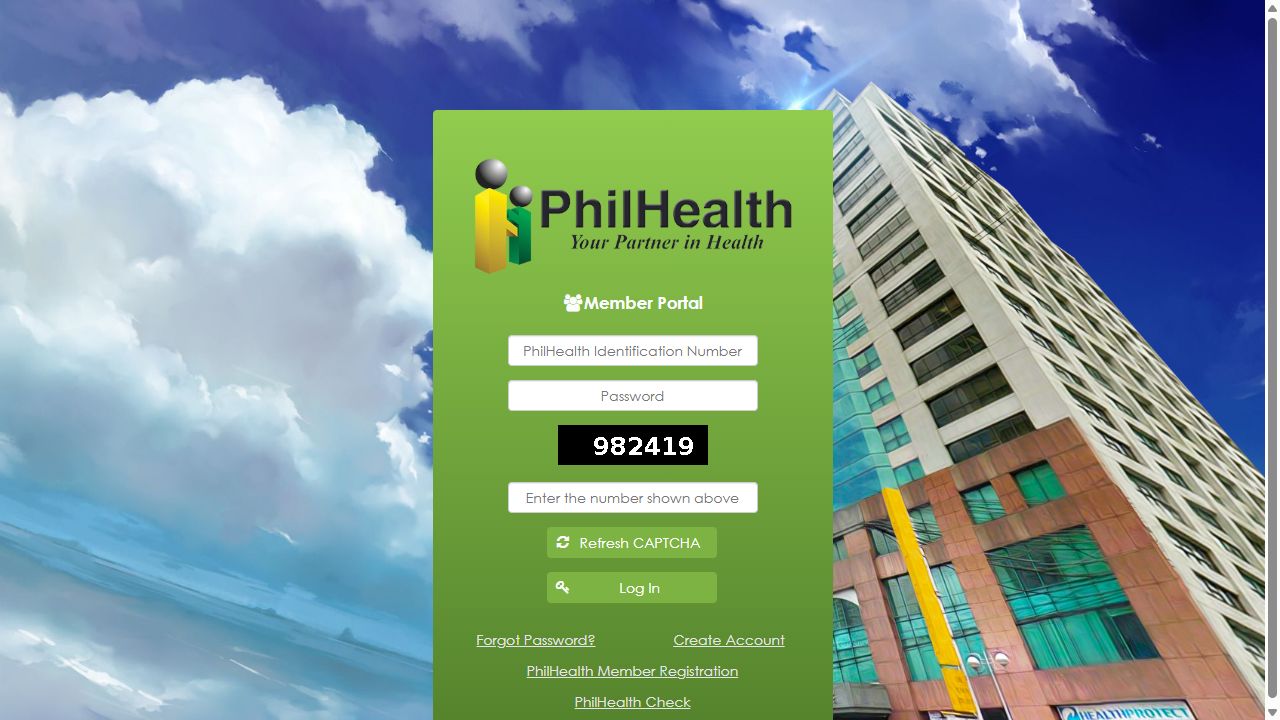
Start with the official PhilHealth login page. Use the screenshot to identify the fields, then follow the instructions below to access your member information.
Official Member Portal address
https://memberinquiry.philhealth.gov.ph/member/
You can also open PhilHealth Online Services, find Member Portal under Membership, and select Register/Login.
-
Enter your PIN
In the PhilHealth Identification Number field, enter your own PIN. Check it against your PhilHealth record before continuing, especially if you copied it from another document.
-
Enter your password
Type the password for your Member Portal account. Check capital letters and avoid adding a space at the beginning or end when copying your password.
-
Complete the CAPTCHA
Enter the characters displayed on your live login page. Use that page’s CAPTCHA, rather than the example in this screenshot. If a refresh option is available, request another code when the current one is unreadable.
-
Select Log In
Review your entries and select Log In. If the portal displays an error, read the message before trying again so you can check the relevant entry.
What happens after a successful login?
Your Member Information Page opens. You can then continue to the MDR viewing and printing steps covered in the next section.
Have a PIN but no portal account?
Complete account creation and email activation first. Follow the Member Portal registration guide before returning to these login steps.
Unable to sign in?
Check the PIN, password and CAPTCHA you entered. For password or access problems, see the account troubleshooting guidance .
After signing in · Computer guide
Open your MDR, then save or print a copy
Once you have accessed your account, open the Member Data Record and review its contents. Then choose whether to keep a PDF on your device or produce a paper copy.
Open the MDR viewing or printing option
Find the MDR viewing or printing option provided in your Member Portal account. Open it and wait for the record to finish loading before continuing.
The exact menu label and position may change. Continue with the Member Data Record itself, rather than your contribution history or the general profile page.
If the record opens in another tab, switch to that tab. Before printing, check that the page on screen is your MDR rather than the portal dashboard.
Check the information shown on your record
Review the following details where they appear on your MDR. Saving another copy will reproduce the information currently displayed.
- Member name Check the spelling and the order of your names.
- PhilHealth PIN Confirm that the record belongs to your membership.
- Date of birth Check the day, month and year against your records.
- Address Review the address held in your membership profile.
- Employer information Check the employer details shown, if applicable.
- Listed dependents Review the names and other dependent details displayed.
Found an incorrect or missing detail? Follow the MDR correction guide for the relevant update process. Editing a saved PDF does not update PhilHealth’s membership record.
Choose a PDF file or a printed copy
Use the document’s download or print control if available. If you use your browser’s print command, keep the MDR document tab active first.
Save your MDR as a PDF
- If the MDR opens as a PDF and a download control is available, use it to save the file.
- Otherwise, open print preview. In Chrome, select Save as PDF as the destination if available.
- Check that the preview contains the full MDR, including every page.
- Select Save and choose a folder you can find again. A filename such as PhilHealth-MDR.pdf can help you identify the document.
- Open the saved file to confirm that it is readable and contains the expected record.
Print your MDR
- Open the document’s print option or your browser’s print preview.
- Select your connected printer as the destination instead of a PDF-saving option.
- Check the page range and number of copies. Match the paper setting to the paper in your printer.
- Inspect the preview for missing edges or text. Adjust scaling if needed; use a fit option if your print dialog provides one.
- Select Print, then check that the resulting pages are complete and readable.
If print preview shows the login screen, a blank page or the dashboard, cancel it. Return to the MDR document and open its print option again.
Check your copy before finishing
Make sure all pages are present and your details are readable. Keep the file in a location you control, and sign out of the Member Portal when you have finished, especially on a shared computer.
References: PhilHealth MDR service, PhilHealth’s Member Portal overview and Google Chrome printing instructions. Print options vary by browser and device.
Phone instructions
Save and print your MDR on Android or iPhone
Choose the instructions for your phone. Start with your MDR open, then save a complete PDF or use a compatible printer. Menu names may differ with your browser, document viewer and phone version.
Open the MDR document first. If the screen still shows the login form, dashboard or contribution history, return to the MDR viewing instructions before saving or printing.
Android
Using Google Chrome
Save a PDF on your phone
- With the MDR open in Chrome, tap the three-dot More menu, then Share and Print.
- In print preview, open the destination selector and choose Save as PDF.
- Check that the preview includes the complete MDR and all its pages.
- Tap the PDF save control and choose a folder. Confirm the filename and finish saving.
Print from your phone
- Open the MDR and use More, Share, then Print in Chrome.
- Select your available printer instead of Save as PDF. The printer must be set up for printing from your phone.
- Review the page range, paper settings and number of copies.
- Check the preview, then tap Print. Follow your printer manufacturer’s instructions if the printer is not listed.
Where to find the saved PDF
Open the Files app and check the folder you selected. For a file downloaded directly through Chrome, you can also check Chrome’s Downloads list. Open the PDF to verify that it contains your MDR.
If the MDR opens in a separate PDF viewer, use that viewer’s download, share or print controls instead. Its menus may differ from Chrome.
iPhone
Using Safari and Files
Save an opened MDR PDF
- Open the MDR PDF in Safari.
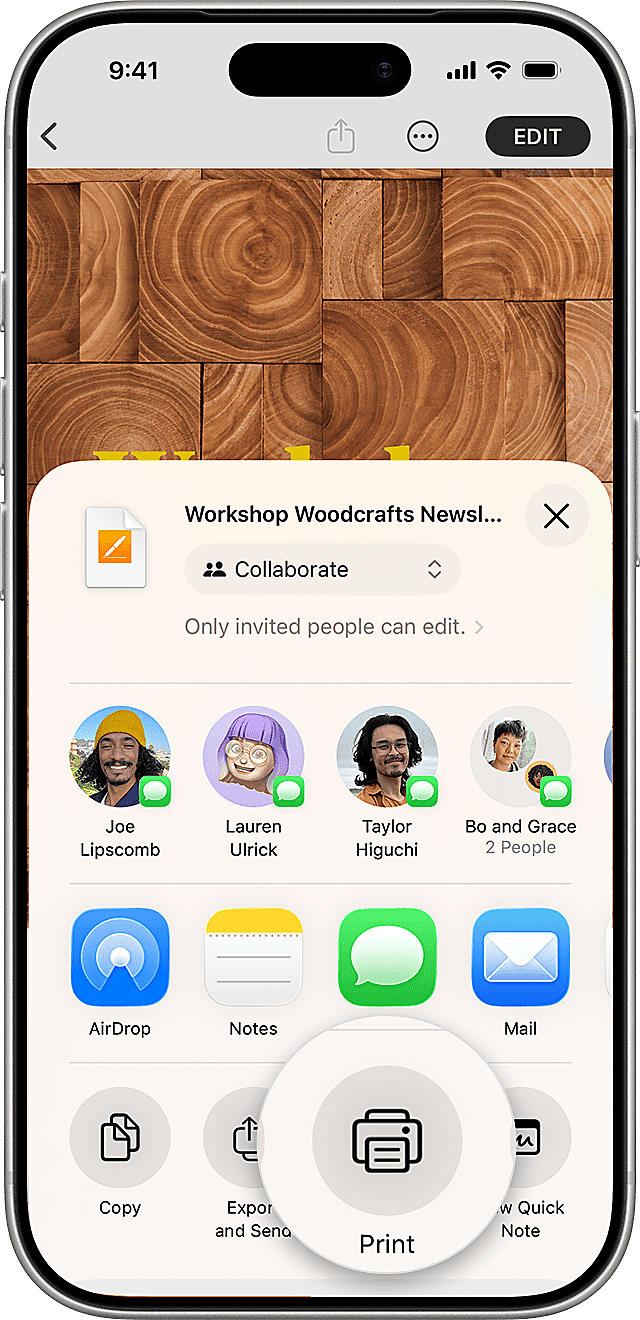
- Open Share. Depending on your Safari layout, it may be inside the More or Page Menu.
- Select Save to Files. Choose a folder in On My iPhone or iCloud Drive, as available.
- Confirm the filename and tap Save. Open Files and check the folder you selected.
Print using AirPrint
- Use an AirPrint-enabled printer and connect your iPhone to the same Wi-Fi network.
- Open the MDR document, then use Share or the app’s Actions menu and select Print.
- Choose your printer. Set the number of copies and the pages you want to print.
- Review the options and tap Print. Printing availability depends on the app displaying the document.
If the MDR opens as a webpage
In Safari, open Share and select Markup to create a PDF of the displayed page. Finish with Done and the file-saving option shown on your iOS version. Check the saved PDF for missing pages or cut-off text before using it.
Download and printing support
Having trouble opening, saving or printing your MDR?
Select the problem that matches your screen. These checks can help you identify a document, browser or printer issue before repeating the process.
The MDR does not open after I select it
- Check whether the document opened in another tab or window, or downloaded to your device.
- If Chrome shows a Pop-up blocked indicator in the address bar, select it and inspect the blocked link. Allow the document only after confirming it belongs to the official PhilHealth service.
- If you are shown the login screen again, sign in and reopen the MDR from your account.
- If no document appears, try another current browser or device. Note any error message that appears.
Print preview is blank or shows the wrong page
Cancel the print dialog and inspect the page underneath. You should be viewing the MDR document before opening print preview.
- Switch to the MDR tab if another page is active. Wait until the document is fully visible.
- Use the document viewer’s print control if available, then check the preview again.
- If a downloaded PDF opens correctly, try printing that saved file from its PDF viewer.
I saved the MDR but cannot find the file
- Check the folder selected when saving. A PDF created through print preview may be in a different location from browser downloads.
- On Android, check the Files app. For a Chrome download, also check Chrome’s Downloads list.
- On iPhone, open Files and check the location chosen under On My iPhone or iCloud Drive.
- If there is no saved copy, repeat the save process and note the filename and folder before confirming.
Text is cut off or pages are missing
- Check whether the original MDR document is complete. Print settings cannot restore information missing from the document itself.
- In print preview, review the page range and include every required page.
- Match the paper setting to your printer’s paper. Adjust scaling or use a fit option if available.
- Review each preview page before saving or printing. Keep the text large enough to read.
My printer is not listed on my phone
- Confirm that the printer is switched on and set up for printing from your device.
- For iPhone AirPrint, confirm printer compatibility and connect the phone and printer to the same Wi-Fi network.
- For Android, follow the printer manufacturer’s instructions for mobile printing and any required printer service.
- If printing remains unavailable, save the PDF and print it later from a computer with printer access.
The MDR opens, but my information is incorrect
Re-downloading or printing the same record does not correct the membership information held by PhilHealth. Identify which details need updating and follow the relevant amendment process.
After PhilHealth processes the change, reopen your MDR and check the information before saving a replacement copy.
Download and print questions
Before you use your saved or printed MDR
Find answers about retrieving your personal record, keeping a PDF and obtaining a new copy after a correction.
Can I download my personal MDR from this website?
This website provides instructions. Retrieve your personal record through PhilHealth’s official Member Portal after accessing your account. The official portal link below takes you to that service.
Do I need a printer to save an MDR PDF?
No. A PDF-saving option creates a file on your device without producing a paper copy. Keep the completed file and print it later when you have access to a compatible printer.
Will my saved PDF change after a record correction?
No. A saved PDF keeps the information it contained when you created it. After PhilHealth processes a correction, reopen your MDR, verify the updated information and save a new copy.
Can I submit a screenshot instead of the complete MDR?
Follow the receiving organisation’s document requirements. A screenshot may leave out part of the record. If an MDR copy is requested, confirm the required format and check that every page and detail is readable before submitting.
Official PhilHealth resources
Use these official pages to access your record, check available online services or locate an office. Each link opens in a new tab.
- Member Portal Access the official account service for viewing and printing your Member Data Record.
- Online Services Find PhilHealth’s published online services, including the Member Portal entry.
- Office Directory Find regional and local office contact details to confirm assistance and request arrangements.